A Siri Shortcut is the ultimate power move for any Beats owner. It allows you to bypass the “Automatic Switching” headache and force your iPhone to grab the audio connection instantly with a single tap on your Home Screen or by saying a voice command.
In iOS, the Shortcuts app has become even more stable for Bluetooth handshakes. Here is how to build your “Connect Beats” shortcut in under two minutes.
Step 1: Open the Shortcuts App
- Launch the Shortcuts app on your iPhone.
- Tap the (+) icon in the top-right corner to create a new shortcut.
- Tap on the name at the top (it usually says “New Shortcut”) and rename it to something easy like “Connect Beats” or “Music Mode.”
Step 2: Add the “Set Playback Destination” Action
This is the “magic” action that tells your iPhone exactly where to send the sound.
- Tap Add Action.
- In the search bar, type “Set Playback Destination” and select it from the list.
- In the action box, you will see: “Set playback destination to iPhone.”
- Tap on the word iPhone (it will be highlighted in blue).
- A list of available devices will appear. Select your Beats (e.g., Beats Studio Pro).
- Note: If your Beats don’t appear in the list, make sure they are currently powered on and connected to your iPhone via Bluetooth while you build the shortcut.
Step 3: Add a “Wait” Command (The Pro Secret)
Sometimes the Bluetooth “handshake” needs a split second to wake up. Adding a tiny delay makes the shortcut 100% reliable.
- Search for the “Wait” action and add it above the Playback Destination action.
- Set it to 1 second.
- Optional: Add a “Play Music” action at the very end if you want your favorite playlist to start automatically as soon as the connection is made.
Step 4: Add to Home Screen for One-Tap Access
Now that the logic is built, let’s make it accessible.
- Tap the Share icon (the square with an up arrow) at the bottom of the shortcut editor.
- Select Add to Home Screen.
- Choose a cool icon (like a pair of headphones) and tap Add.
How to Use Your New Shortcut
- The Tap: Just tap the icon on your Home Screen. Your iPhone will instantly “pull” the audio from your Mac or iPad and lock it to your Beats.
- The Voice: Say, “Siri, Connect Beats.” * The Action Button: If you have an iPhone 15 Pro or newer (including the latest 2026 models), you can map this shortcut to your Action Button under Settings.
Summary Checklist
| Component | Setting |
| Action 1 | Wait (1 Second) |
| Action 2 | Set Playback Destination to [Your Beats] |
| Action 3 (Optional) | Play [Your Playlist] |
| Trigger | Home Screen Icon or Siri Command |
- 10 Home Recording Studio Equipment [Updated List] 2026
- Why Do My AirPods Sound Muffled After Update? 5 Working Solution
- What Is cVc Noise Cancellation? Guide to Crystal Clear Calls [2026]

- How to Stop Bluetooth Interference From WiFi Routers | Most Common Issue
- How to Use Bluetooth to Connect Your Phone to Your Car | 3 Step Process
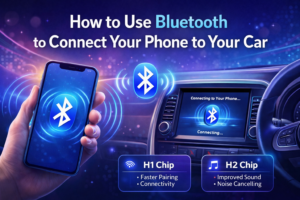
- How Does Apple’s H1 and H2 chips Works? what are the Benefits [2026]