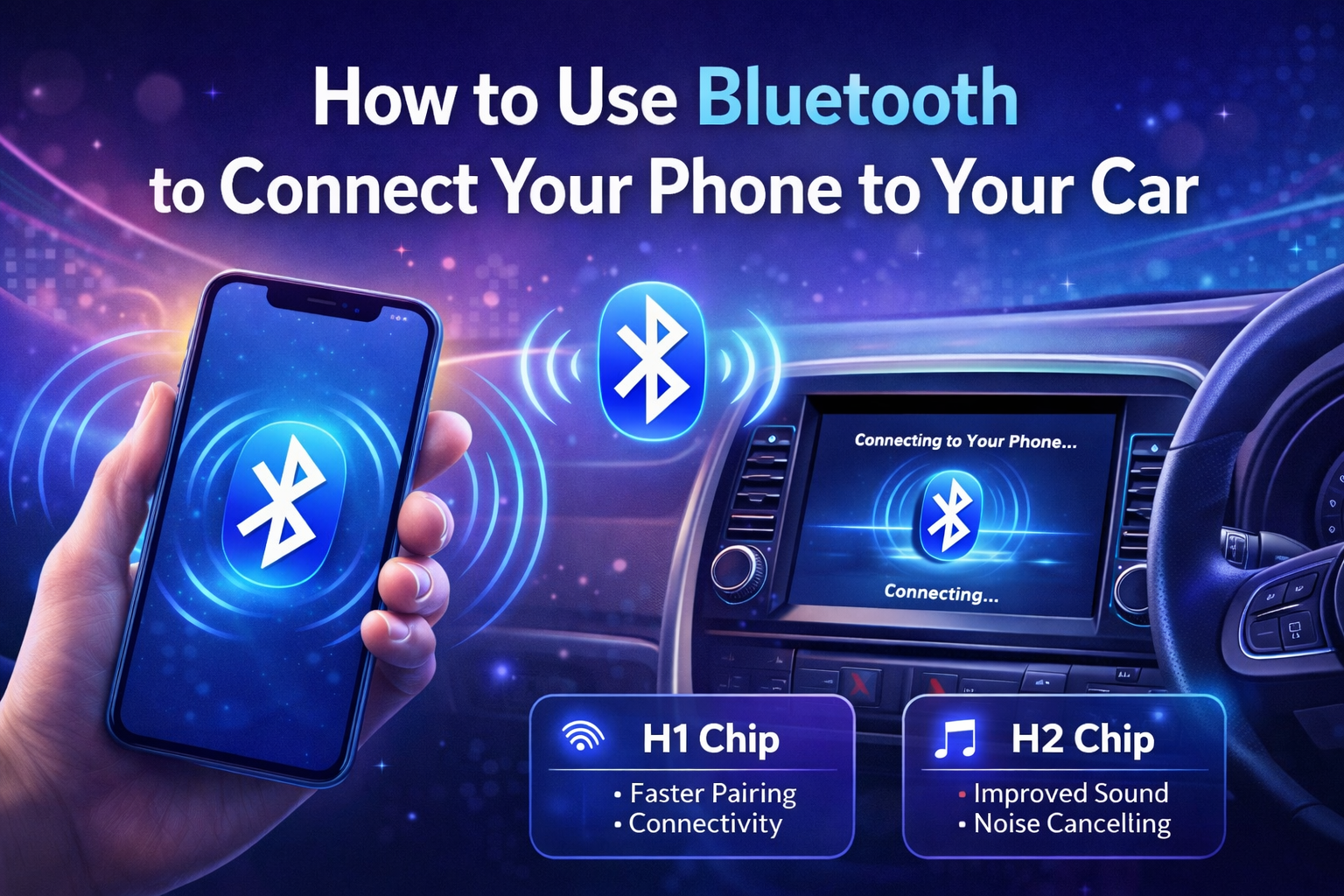
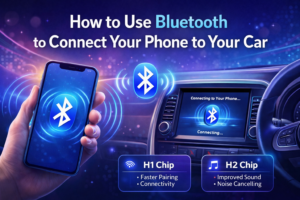
Connecting your phone to your car’s Bluetooth system is one of the quickest ways to modernize your driving experience. Whether you’re driving a 2026 model with a high-end digital interface or an older vehicle with a traditional stereo, the pairing process follows a few universal steps.
In 2026, many vehicles now support Wireless Apple CarPlay and Android Auto, which use Bluetooth for the initial “handshake” before switching to Wi-Fi for higher-quality data.
1. Step-by-Step Pairing Guide (2026 Update)
To ensure a smooth connection, follow these steps while the car is in Park (P). Many modern systems will block the pairing process if the vehicle is in motion for safety reasons.
Phase 1: Prepare Your Phone
- Open Settings on your smartphone.
- Navigate to Bluetooth and ensure the toggle is turned On.
- Keep this screen open; your phone is now “discoverable” and searching for nearby signals.
Phase 2: Access the Car’s Infotainment System
- On your car’s touchscreen or dash, look for a menu labeled Phone, Setup, or Connectivity.
- Select Add Device, Pair New Phone, or Register Device.
- The car will begin scanning. When your phone’s name (e.g., “Agam’s iPhone”) appears on the car screen, select it.
Phase 3: The “Handshake” (Verification)
- A 6-digit passcode will appear on both your phone and the car’s display.
- Verify that the numbers match exactly.
- Tap Pair or OK on your phone, and confirm the connection on the car screen.
2. Setting Permissions for 2026 Tech
Once paired, your phone will likely ask for two specific permissions. For the best experience, we recommend allowing both:
- Sync Contacts & Call History: This allows you to see who is calling on the car’s screen and use voice commands like “Call Mom.”
- Allow Notifications: This enables your car to read out incoming text messages via your voice assistant.
3. Troubleshooting Common Connection Issues
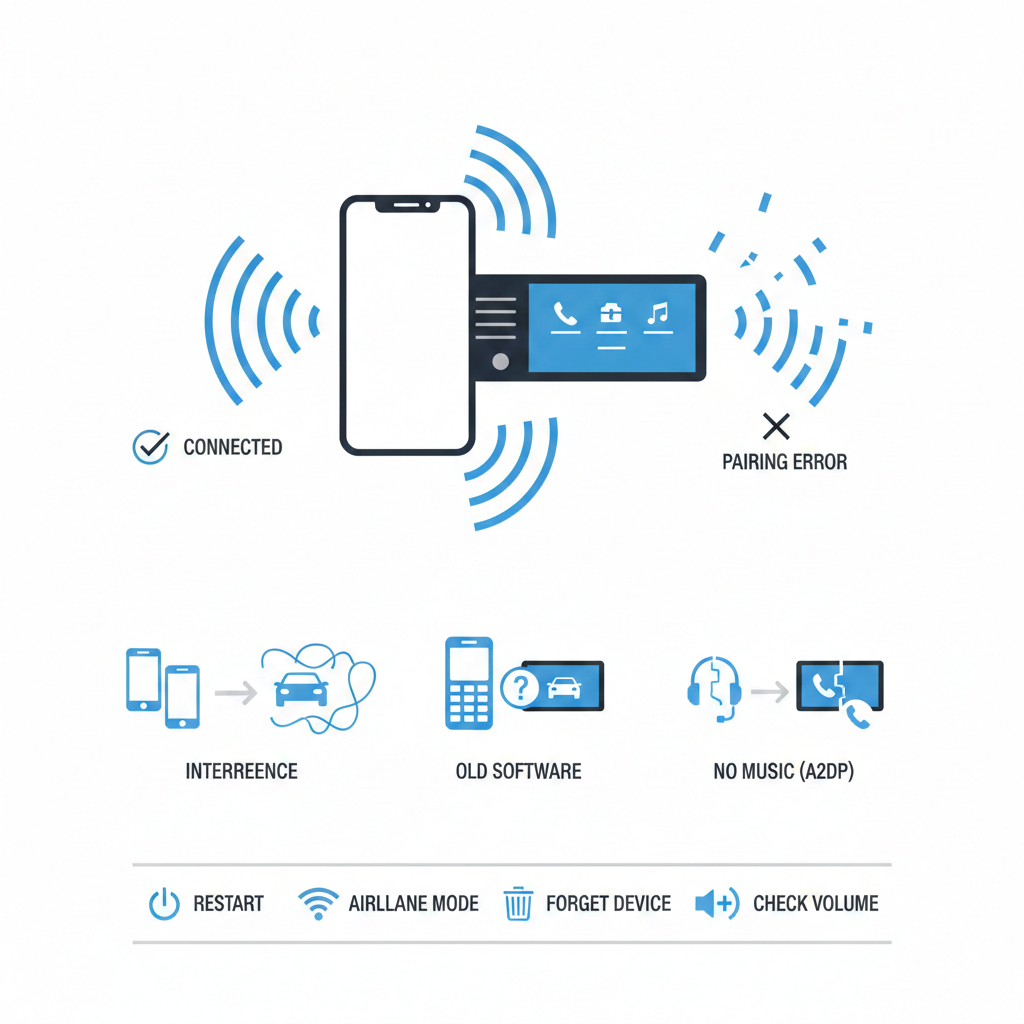
If your phone refuses to connect, don’t worry—it’s usually a simple fix. In 2026, most issues are caused by “memory clutter.”
| Problem | Likely Cause | Solution |
| Device Not Found | Not in “Discovery” mode. | Ensure the Bluetooth settings screen is open on your phone. |
| Pairing Failed | Memory is full. | Delete old, unused phones from the car’s Bluetooth list. |
| Audio Stutters | Interference. | Move your phone away from Wi-Fi hotspots or wireless chargers in the car. |
| No Auto-Connect | Priority not set. | In car settings, set your phone as the “Primary” or “Favorite” device. |
4. Upgrading Older Cars (Pre-Bluetooth Models)
If your car doesn’t have built-in Bluetooth, you aren’t stuck with CDs or the radio. You can use one of these 2026 solutions:
- Bluetooth FM Transmitter: Plugs into your cigarette lighter and broadcasts your phone’s audio over an unused FM radio station.
- Aux-to-Bluetooth Adapter: If your car has a 3.5mm “Aux” jack, a small $20 adapter can turn it into a high-quality Bluetooth receiver.
- Wireless Carplay/Android Auto Dongle: If your car has wired CarPlay but you want it wireless, these plug-and-play USB dongles are a game-changer for 2026.
Conclusion
Setting up your Bluetooth connection is a “set it and forget it” task. Once paired, your car will automatically recognize your phone every time you step inside. This allows you to enjoy hands-free calls, voice-activated navigation, and your favorite playlists without ever taking your eyes off the road.
- 10 Home Recording Studio Equipment [Updated List] 2026
- Why Do My AirPods Sound Muffled After Update? 5 Working Solution
- What Is cVc Noise Cancellation? Guide to Crystal Clear Calls [2026]

- How to Stop Bluetooth Interference From WiFi Routers | Most Common Issue
- How to Use Bluetooth to Connect Your Phone to Your Car | 3 Step Process
- How Does Apple’s H1 and H2 chips Works? what are the Benefits [2026]