Our homes are more crowded with invisible signals than ever before. If you’ve noticed your Bluetooth headphones stuttering the moment you walk near your desk or your wireless mouse lagging while you stream a movie, you are likely a victim of 2.4 GHz interference.
Because both Bluetooth and traditional Wi-Fi operate on the same 2.4 GHz frequency band, they often “shout” over one another, leading to dropped connections and audio glitches. Here is your definitive, expert-backed guide to stopping Wi-Fi routers from ruining your Bluetooth experience.
1. The “Frequency Band” Fix (The Gold Standard)
The most effective way to stop interference is to move your high-bandwidth traffic out of the “neighborhood” where Bluetooth lives.
- Switch to 5 GHz or 6 GHz: Most modern routers in 2026 are dual or tri-band. Move your smartphones, laptops, and smart TVs to the 5 GHz or the newer 6 GHz (Wi-Fi 6E/7) bands.
- Why it works: Bluetooth only operates on 2.4 GHz. By moving your Wi-Fi traffic to 5 GHz, you leave the 2.4 GHz lane open for your Bluetooth devices to “breathe.”
- The “Legacy” Tweak: If you have old smart home devices that require 2.4 GHz, keep them on that band but move your “active” devices (like the phone you’re using for music) to the 5 GHz band.
2. Strategic Channel Planning
If you must use 2.4 GHz Wi-Fi, you need to pick a channel that stays out of Bluetooth’s way. While Bluetooth “hops” across 79 different channels to avoid noise, a wide Wi-Fi signal can still swamp it.
The Best 2.4 GHz Channels for 2026:
- Channel 1 or 11: These are the most stable “edge” channels. In the US, avoid Channel 6 if possible, as it’s the most common default and creates the most central congestion.
- The “20 MHz” Rule: Go into your router settings and ensure your 2.4 GHz channel width is set to 20 MHz, not 40 MHz. A wider 40 MHz channel takes up nearly the entire spectrum, leaving zero room for Bluetooth to operate.
3. Physical Distance & Barriers
Signal interference follows the “Inverse Square Law”—doubling the distance between the router and your Bluetooth device can reduce the interference by four times.
- The 3-Foot Rule: Keep your Wi-Fi router at least 3 to 5 feet away from your computer, Bluetooth speakers, or gaming console.
- Avoid Metal Barriers: Metal is the ultimate enemy of 2.4 GHz signals. Don’t place your router behind a TV or inside a metal cabinet. This causes signals to bounce back and create “multipath interference,” which specifically confuses Bluetooth receivers.
4. Hardware “Coexistence” Hacks
Sometimes the interference isn’t coming from the air, but from the hardware itself.
- USB 3.0 Shielding: Did you know that active USB 3.0 ports (blue ports) emit radio frequency noise that perfectly interferes with Bluetooth?
- The Fix: If you use a Bluetooth dongle, plug it into a USB 2.0 port or use a short USB extension cable to move the dongle away from the computer’s motherboard.
- Update Firmware: In 2026, many routers and headphones have received “Coexistence” updates. Ensure your router’s firmware is current; modern chipsets are much better at “listening” for Bluetooth pulses and timing Wi-Fi bursts to avoid them.
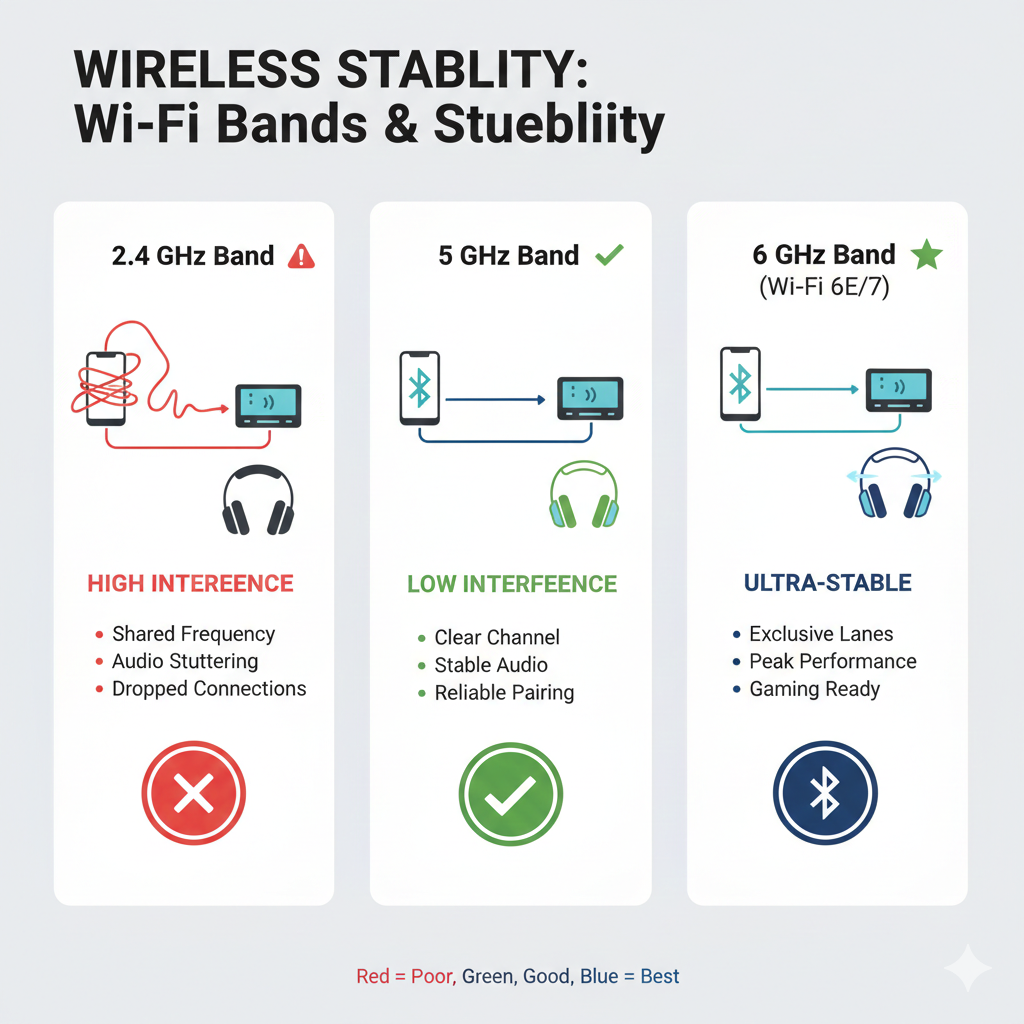
Comparison: Wi-Fi Bands vs. Bluetooth Stability
| Wi-Fi Band | Bluetooth Conflict Risk | Performance Impact |
| 2.4 GHz | Extreme | Audio stuttering, mouse lag, dropped pairs. |
| 5 GHz | Zero | Perfect Bluetooth audio; no interference. |
| 6 GHz (Wi-Fi 6E/7) | Zero | Ultimate stability; lowest latency for gaming. |
5. Advanced Troubleshooting (The “Pro” List)
If you’ve tried the basics and still hear that annoying robotic “crackle” in your ears:
- Disable “Auto” Channel Selection: Many routers “hop” channels automatically to find the best Wi-Fi signal, but they don’t always check for Bluetooth. Manually locking into Channel 1 often solves the issue.
- Turn Off Unused Bluetooth: If you have five different Bluetooth devices on your desk (watch, phone, mouse, keyboard, headset), they are all fighting for the same tiny slice of 2.4 GHz airwaves. Turn off what you aren’t using.
- Check the Microwave: Microwaves use the 2.4 GHz frequency. If your Bluetooth cuts out only when you’re heating up lunch, it’s a shielding leak in the microwave, not your router!
Conclusion: Reclaiming Your Wireless Space
Bluetooth interference isn’t a “ghost in the machine”—it’s a simple traffic jam. By moving your heavy data (Wi-Fi) to the 5 GHz or 6 GHz lanes and keeping your physical hardware spaced out, you can eliminate 99% of stuttering and lag. In 2026, the best setup is a “Tri-band” network where the 2.4 GHz band is reserved strictly for low-power IoT and Bluetooth accessories.
- 10 Home Recording Studio Equipment [Updated List] 2026
- Why Do My AirPods Sound Muffled After Update? 5 Working Solution

- What Is cVc Noise Cancellation? Guide to Crystal Clear Calls [2026]

- How to Stop Bluetooth Interference From WiFi Routers | Most Common Issue
- How to Use Bluetooth to Connect Your Phone to Your Car | 3 Step Process

- How Does Apple’s H1 and H2 chips Works? what are the Benefits [2026]