Connecting your Sony headphones to a Mac is a straightforward process, but getting it right the first time ensures a stable, high-quality audio connection. Whether you are using the industry-leading WH-1000XM5, the classic XM4, or any other Sony Bluetooth model, this guide will walk you through the process in four easy steps.
Pre-Connection Checklist
Before you begin, ensure your gear is ready:
- Battery Charge: Your headphones should have at least 50% battery to prevent the connection from dropping during the handshake.
- Distance: Keep your headphones within 3 feet (1 meter) of your Mac during the initial pairing.1
- Disconnect Other Devices: Sony headphones often try to “loyally” connect to the last device used (like your iPhone).2 Turn off Bluetooth on nearby devices to prevent interference.3
How To Connect Sony Headphones To Mac: 4 Easy Steps
Step 1: Put Your Sony Headphones into Pairing Mode
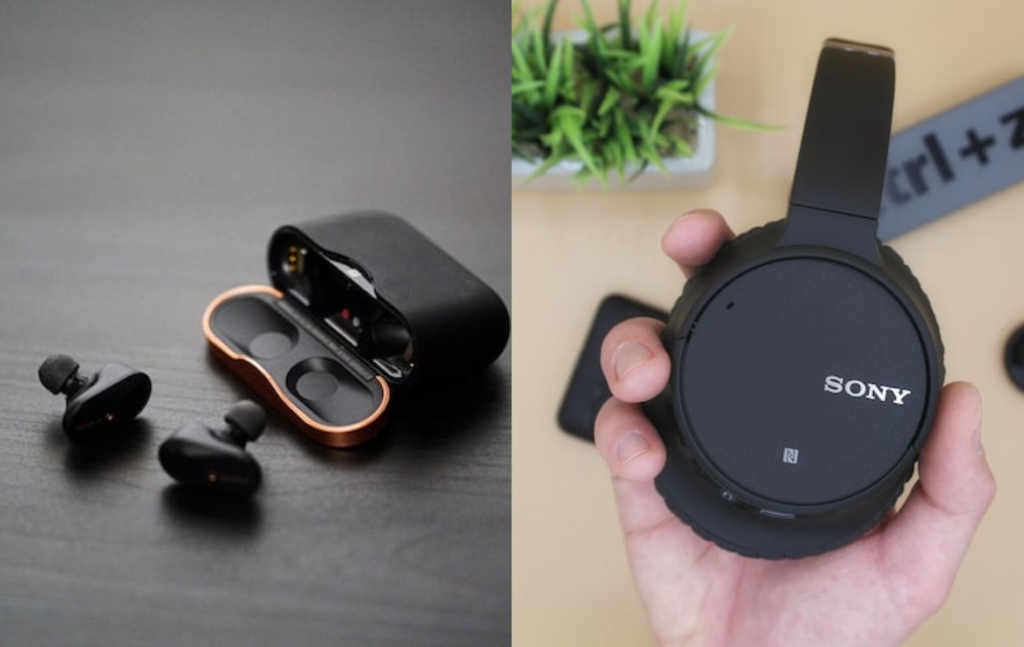
The most common mistake is simply turning the headphones on. You must enter Bluetooth Pairing Mode for your Mac to “see” them.4
- For WH-1000XM4/XM5: Ensure the headphones are OFF. Press and hold the Power button for about 7 seconds.5 You will hear a voice guidance saying “Bluetooth Pairing,” and the indicator light will flash blue twice in a row.6
- For WF Series (Earbuds): Place the buds in your ears or keep them in the case with the lid open, then hold the touch sensors on both buds for about 7 seconds until you hear the pairing prompt.
Step 2: Enable Bluetooth on Your Mac
Now, you need to tell your Mac to look for new devices.
- Click the Apple Menu () in the top-left corner of your screen.7
- Select System Settings (or System Preferences on older macOS versions).8
- Click on Bluetooth in the sidebar.
- Ensure the Bluetooth toggle is switched ON.
Step 3: Pair the Devices
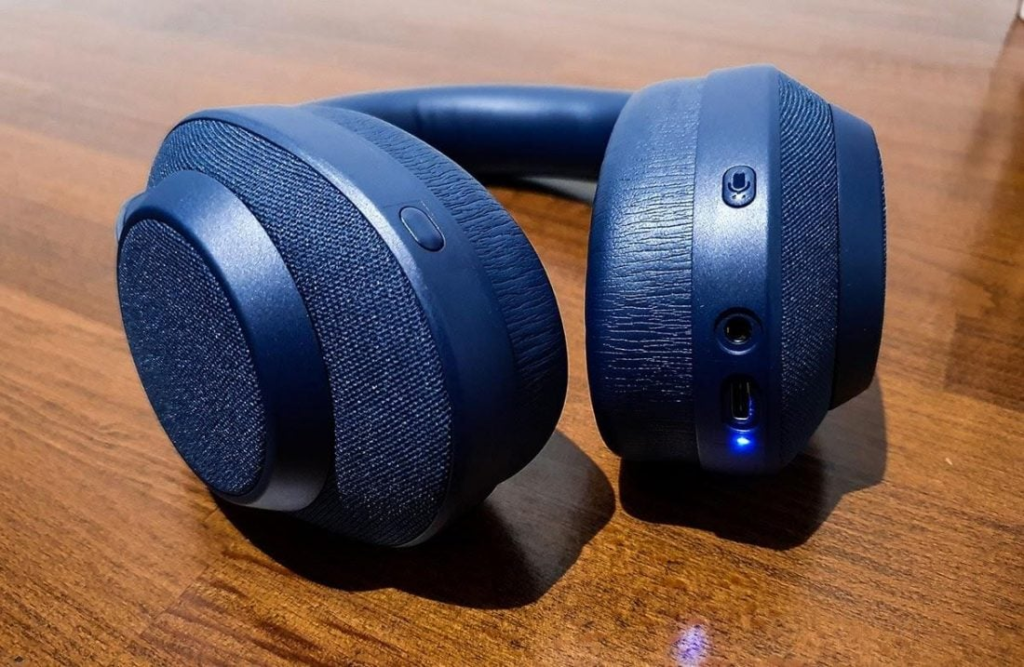
Your Mac will now scan for nearby discoverable devices.9
- Look at the list under “Nearby Devices” or “My Devices.”
- Your Sony model (e.g., WH-1000XM5) should appear.10
- Note: If you see “LE_WH-1000XM5,” wait a few seconds for the version without “LE” to appear, as “LE” stands for Low Energy and may not support full audio.
- Click Connect next to your headphone’s name.
Step 4: Set as Output Device
Usually, macOS switches the audio automatically, but if your sound is still coming from the Mac speakers, do this:
- Go to System Settings > Sound.
- Click the Output tab.
- Select your Sony headphones from the list.
Troubleshooting Common Connection Issues
| Issue | Solution |
| Headphones not appearing | Ensure they aren’t connected to your phone. Turn off phone Bluetooth and restart pairing mode. |
| Connected but no sound | Check System Settings > Sound > Output and verify the volume isn’t muted on the Mac or the headphones. |
| Choppy Audio | Move away from Wi-Fi routers or other heavy 2.4GHz interference. Restart your Mac’s Bluetooth module. |
| Multipoint Issues | Use the **Sony |
A Note on the Sony | Sound Connect App
While there is no official Sony app for macOS, you should use the Sony | Sound Connect app (formerly Headphones Connect) on your iOS or Android device to manage firmware updates.11 These updates often fix stability issues with Mac M1, M2, and M3 chips.
- 10 Home Recording Studio Equipment [Updated List] 2026
- Why Do My AirPods Sound Muffled After Update? 5 Working Solution

- What Is cVc Noise Cancellation? Guide to Crystal Clear Calls [2026]

- How to Stop Bluetooth Interference From WiFi Routers | Most Common Issue
- How to Use Bluetooth to Connect Your Phone to Your Car | 3 Step Process

- How Does Apple’s H1 and H2 chips Works? what are the Benefits [2026]