Ever wondered just how many times you’ve actually streamed that one “guilty pleasure” track? Or maybe you’re curious if your obsession with 90s Grunge is finally overtaking your Lo-Fi study beats.
In 2026, Spotify has made it easier than ever to peek behind the curtain of your listening habits. Whether you’re waiting for the viral Spotify Wrapped season or you want a real-time deep dive into your sonic DNA, there are several ways to track your data.
Here is your comprehensive guide on how to check your Spotify stats, from native in-app features to the best third-party analyzers.
1. The Official Way: Spotify’s Native “Listening Stats”
As of late 2025, Spotify rolled out a dedicated Listening Stats tab directly in the mobile app. This was a game-changer for users who didn’t want to wait until December to see their rankings.
How to access it on Mobile (iOS & Android):
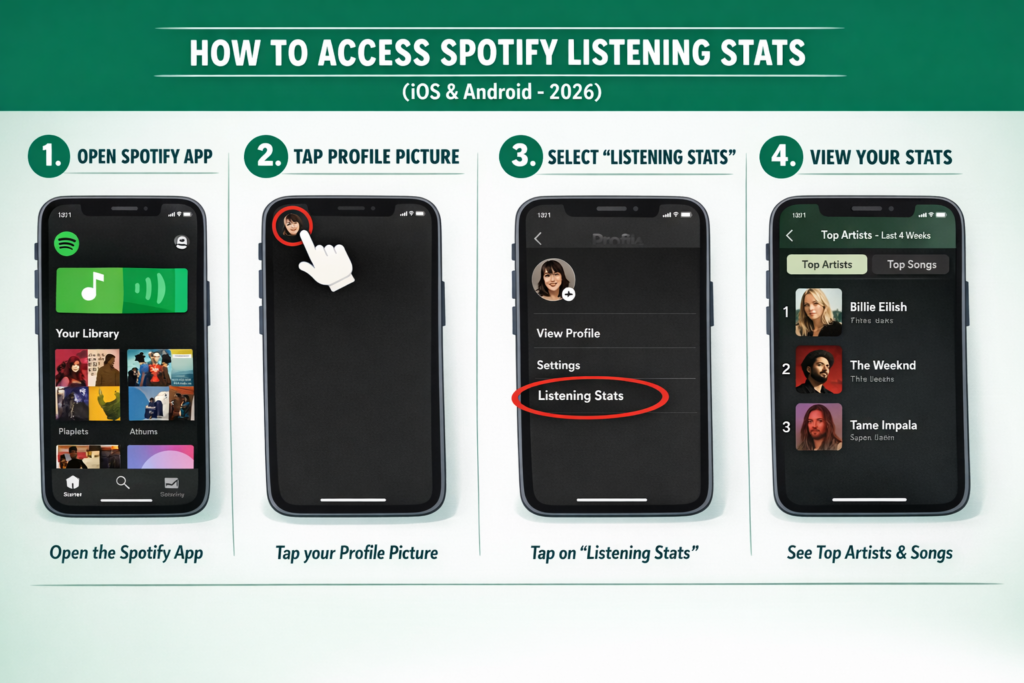
- Open the Spotify App.
- Tap on your Profile Picture in the top-left corner.
- Click on the “Listening Stats” tab (new for 2026).
- Here, you can toggle between your Top Artists and Top Songs from the last 4 weeks.
How to access it on Desktop:
- Click your Profile Name in the top-right corner.
- Select Profile.
- Scroll down to see your public “Top Artists” and “Top Tracks” for the current month.
2. The Viral Sensation: Spotify Wrapped
The “Super Bowl” of music data, Spotify Wrapped, remains the most detailed official report. While it only drops once a year (usually in the first week of December), it provides unique insights that standard stats don’t.
What you get in your 2025/2026 Wrapped:
- Listening Age: A new feature that compares your taste to different age demographics.
- Clubs: A personality-style grouping (e.g., “The Grit Collective”) based on your genre niches.
- Fan Leaderboards: Exactly where you rank globally for your #1 artist (e.g., “Top 1% of listeners”).
3. Best Third-Party Spotify Stats Tools
If the basic in-app stats aren’t enough, “Pro” listeners use third-party sites. These tools connect via Spotify’s API to give you data going back years.
| Tool Name | Best For | Unique Feature |
| Stats.fm (Spotistats) | Accuracy & History | Track your specific “stream count” (exact number of plays). |
| Receiptify | Social Sharing | Turns your top 10 tracks into a “shopping receipt” graphic. |
| Obscurify | Music Snobs | Tells you how “obscure” or “mainstream” your taste is compared to others. |
| Icebergify | Visualization | Creates an “Iceberg” chart; popular artists at the top, niche at the bottom. |
| Instafest | Festivals | Generates a 3-day music festival poster based on your top artists. |
4. How to Get Even More Detailed Data (The Pro Method)
Did you know you can request your Lifetime Streaming History directly from Spotify? This is for the true data nerds who want to see every single song they’ve played since they opened their account.
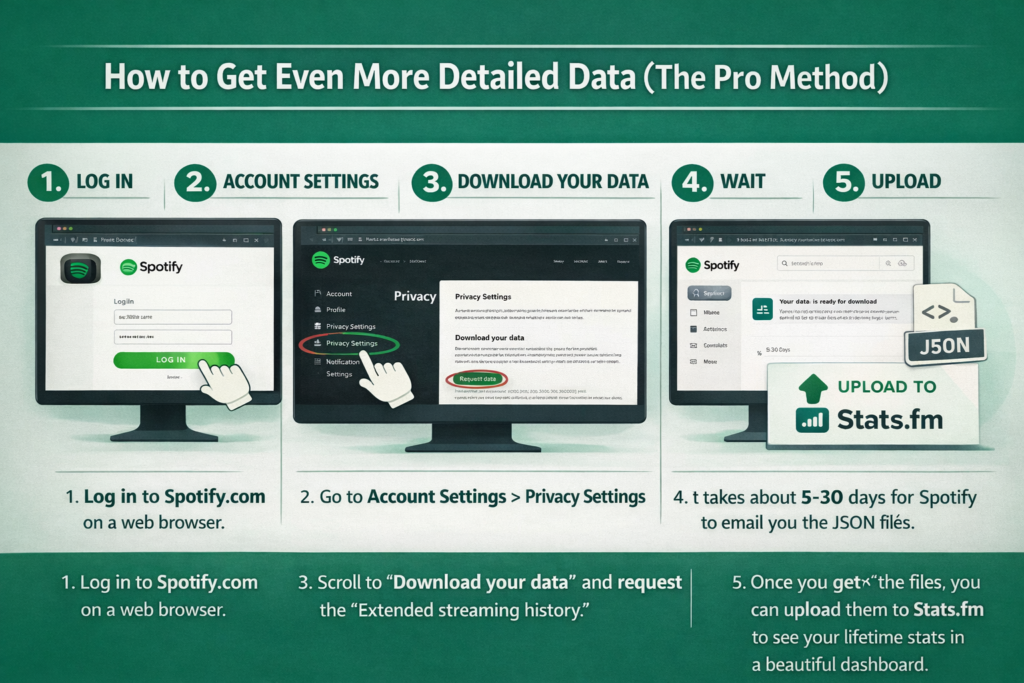
- Log in to Spotify.com on a web browser.
- Go to Account Settings > Privacy Settings.
- Scroll to “Download your data” and request the “Extended streaming history.”
- Wait: It takes about 5-30 days for Spotify to email you the JSON files.
- Upload: Once you get the files, you can upload them to Stats.fm to see your lifetime stats in a beautiful dashboard.
5. Privacy Tip: Keeping Your Stats Low-Key
Sometimes you want to listen to a 10-hour loop of “Rain Sounds” or a cheesy pop hit without it ruining your stats or your Wrapped.
- Private Session: Go to Settings > Social > Private Session. Anything you listen to here is hidden from your taste profile and won’t show up in your stats.
- Exclude from Taste Profile: You can now long-press a playlist and select “Exclude from your taste profile” to keep those “Sleep” or “Workout” playlists from skewing your recommendations.
Conclusion
Checking your Spotify stats is more than just a vanity project—it’s a way to rediscover the music that soundtracked your life’s biggest moments. Whether you use the new Listening Stats tab for a quick check-in or Stats.fm for a deep dive into your play counts, the data is yours to explore.
- 10 Home Recording Studio Equipment [Updated List] 2026

- Why Do My AirPods Sound Muffled After Update? 5 Working Solution
- What Is cVc Noise Cancellation? Guide to Crystal Clear Calls [2026]
- How to Stop Bluetooth Interference From WiFi Routers | Most Common Issue
- How to Use Bluetooth to Connect Your Phone to Your Car | 3 Step Process

- How Does Apple’s H1 and H2 chips Works? what are the Benefits [2026]