Bluetooth speakers have gained wide popularity due to their rechargeable battery feature and high-quality audio. Altec Lansing is a popular and reliable brand in the Bluetooth speakers range.
This speaker delivers an excellent performance which adds to their value. There are a few unique methods of pairing Altec Lansing speakers. This article will be a good guide for those who need to learn the methods of pairing Altec Lansing Bluetooth speakers.
Altec Lansing Bluetooth speakers are known for their “Everything Proof” durability, but their pairing process can vary slightly depending on whether you are connecting a single speaker or linking multiple for a “House Party.”
The pairing logic remains consistent across their most popular models like the LifeJacket, Hydra, and Baby Boom.
1. Standard Bluetooth Pairing (Single Speaker)
Use this for connecting your speaker to a smartphone, tablet, or laptop for the first time.
- Power On & Enter Pairing Mode: Press and hold the Power Button for 5–8 seconds.
- Crucial Step: Even after the speaker turns on, keep holding the button until the LED light flashes Red and Blue (or just Blue on some models). You should hear a voice prompt saying, “Powering on… Pairing.”
- Enable Bluetooth on Your Device: Go to Settings > Bluetooth on your phone or PC and turn it on.
- Select Your Speaker: Look for the name of your model (e.g., “AL Baby Boom” or “HydraMotion”) in the list of available devices.
- Confirm Connection: Tap the name to connect. You will hear a loud beep or a voice saying, “You are now paired, enjoy!”
2. Linking Two Speakers (True Wireless Pairing)
If you have two identical Altec Lansing speakers, you can pair them to play in stereo.
- Power on both speakers.
- Parent Speaker: Pair the first speaker to your phone as usual. Once connected, press and hold the Power and Minus (–) buttons simultaneously for 3 seconds. The LED will flash Green.
- Child Speaker: On the second speaker, press and hold the Power and Plus (+) buttons (or just the Bluetooth button on some models) for 3 seconds.
- Sync: Wait a few seconds. Both LEDs will turn solid Green once they are successfully linked.
3. House Party Mode (Up to 50 Speakers)
For compatible models like the Sonic Boom or LifeJacket XL, you can link a massive chain of speakers.
- Master Speaker: Connect to your phone via Bluetooth. Hold the Bluetooth/Link Button for 2 seconds until the light flashes Green.
- Satellite Speakers: Power them on and quickly tap the Bluetooth button on each. They will automatically find the parent speaker and sync within seconds.
Troubleshooting: What to do if it won’t connect?
| Problem | Solution |
| Speaker not appearing in list | Ensure the LED is flashing Red/Blue. If it’s solid Blue, it’s already connected to another device (like an old phone). Turn off Bluetooth on nearby devices. |
| “Forget Device” Error | If you’ve paired before but it won’t reconnect, go to your Bluetooth settings, select “Forget This Device,” and restart the pairing process from Step 1. |
| Full Factory Reset | If the speaker is “frozen,” press and hold the Volume Up (+) and Volume Down (–) buttons simultaneously for 7–10 seconds. You will hear a beep, and the speaker will restart in pairing mode. |
Steps To Accomplish Pairing Mode On Your Altec Lansing Bluetooth Speaker
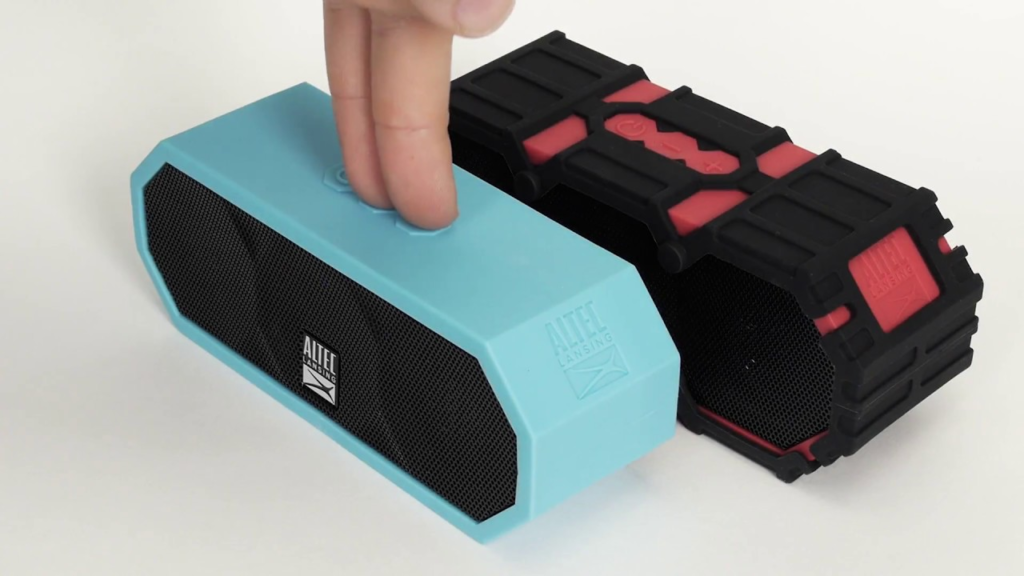
Any device, including Android, iOS, Windows, and TV, is compatible with the Altec Lansing Bluetooth speaker. The best Bluetooth speakers can be used for an Android phone, an iPhone, a PC, a laptop, or a smart TV. You only need to follow five simple steps to finish the pairing mode with the Altec Lansing Bluetooth speaker.
- Turn on Bluetooth connectivity by going to your specific device’s Settings.
- Make sure your Bluetooth speaker is on and fully charged.
- Wait for a while.
- After a while, the speakers’ names will appear on your device’s screen. The pairing mode is accomplished with a simple press.
- Enjoy amazing sound from your Altec Lansing speakers.
Pairing Your Altec Lansing Bluetooth Speakers With An Android Device – Follow These Steps
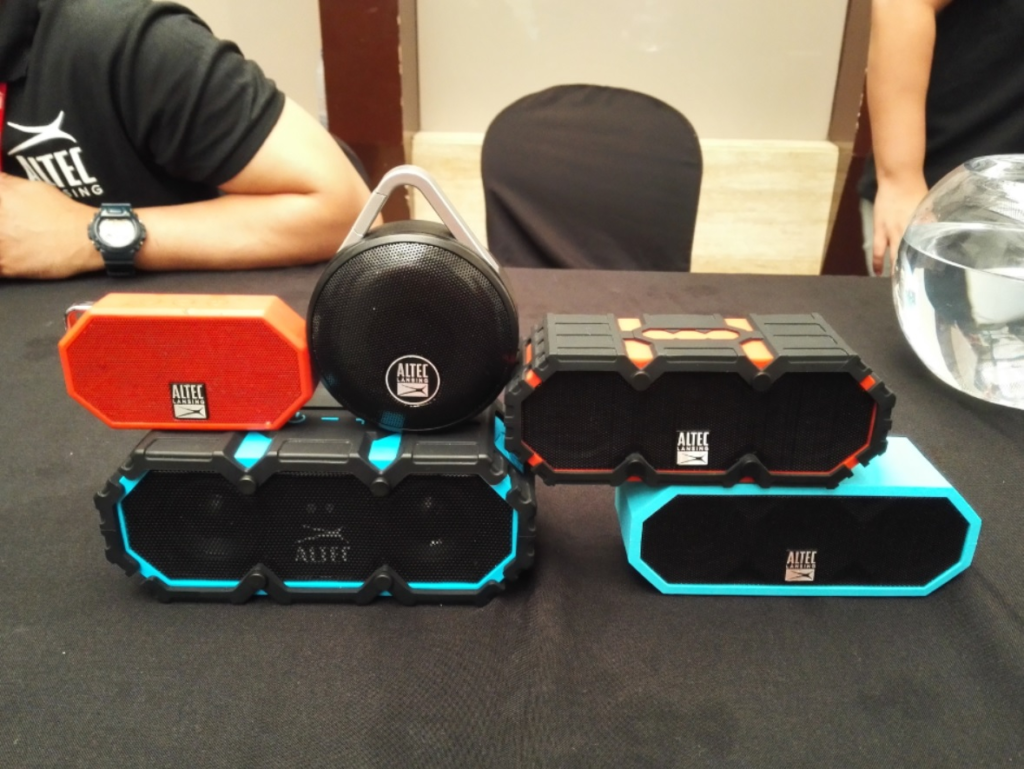
- Press the hold Power Button on the Bluetooth speaker.
- The flashing red and blue LED indicator on your Altec Lansing Bluetooth speaker indicates that the speaker is currently in pairing mode.
- Now, click Settings on your Android device.
- Choose Connections from the options Menu by navigating there.
- Under Connection options, select Bluetooth and turn on the Toggle Button.
- After you enable Bluetooth on the Android device, a list of nearby devices will appear on your Android device.
- Click Connect after selecting the name of the Altec Lansing device from the list of devices. Wait a few seconds, and you will find that your speaker and Android device have been paired.
Pairing Your Altec Lansing Bluetooth Speakers With An iPhone Or iPad – Here’s How

- Press and hold the Power Button on your speaker.
- The LED indicator on your Altec Lansing Bluetooth speaker will start flashing red and blue to show the active pairing mode.
- On your iPhone or iPad, open Settings and choose the Bluetooth option from the device’s list of Settings.
- Turn on the Toggle Button. You can see the list of Bluetooth devices on your iPhone or iPad.
- Choose your Altec Lansing speaker from the devices list. Wait a few seconds. Your iOS device and Bluetooth speaker will automatically link.
Pairing Your Altec Lansing Bluetooth Speakers With A Windows 10 PC – Here’s What You Need To Do
- Press and hold the Power Button on your speaker.
- The LED indicator on your Altec Lansing Bluetooth speaker will start flashing red and blue to show the active pairing mode.
- You can tap the Windows symbol on your PC’s display. Another option you have is to press the Windows key on the keyboard.
- Then go to the Menu that appears on the screen of your PC and select the Settings option.
- Navigate to the “Devices” option in the Settings window and select “Bluetooth devices” to proceed.
- Choose Add Bluetooth from the Menu.
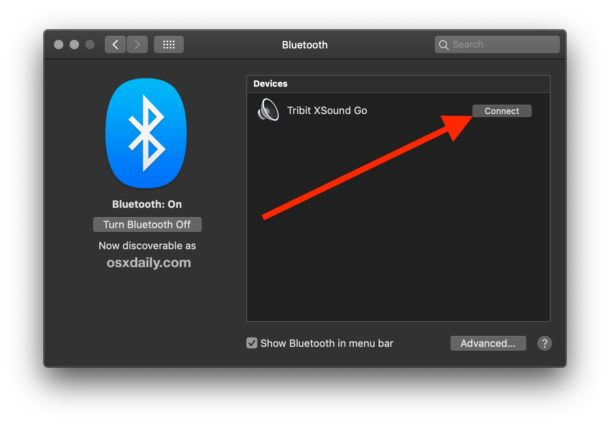
- Then tap Connect after selecting the Altec Lansing Bluetooth speaker from the list of devices.
- You should now find that your Windows 10 PC and the Altec Lansing speaker are paired.
Pairing Your Altec Lansing Bluetooth Speakers With Your TV – Follow These Simple Steps
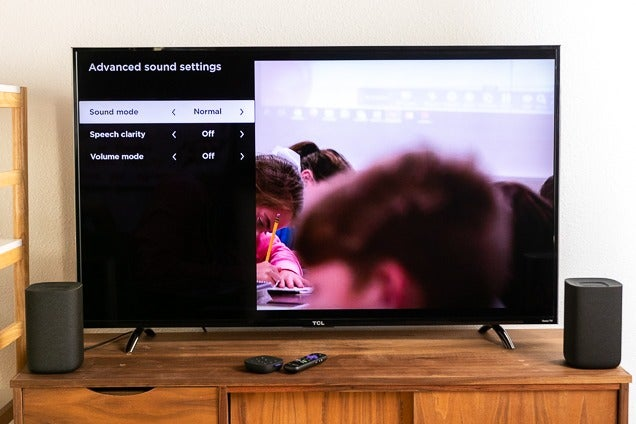
- Get a high-speed HDMI cable. You also have the option of choosing an Ultra-High HDMI cable.
- Join your HDMI cable to the HDMI slot on your smart TV.
- Then plug it into the HDMI arc port on the back side of the Altec Lansing Bluetooth speaker.
- Both devices should be paired and inserted properly.
- Check the sound quality of your Altec Lansing speaker playing any audio on your smart TV.
Conclusion
Altec Lansing speakers’ specialty is that many can connect to more than two or multiple devices at once. Naturally, the numbers vary by the speakers’ model.
- 10 Home Recording Studio Equipment [Updated List] 2026
- Why Do My AirPods Sound Muffled After Update? 5 Working Solution

- What Is cVc Noise Cancellation? Guide to Crystal Clear Calls [2026]

- How to Stop Bluetooth Interference From WiFi Routers | Most Common Issue
- How to Use Bluetooth to Connect Your Phone to Your Car | 3 Step Process
- How Does Apple’s H1 and H2 chips Works? what are the Benefits [2026]